
Category: Technology

Permission Sensitive Caching in AEM

In Adobe Experience Manager (AEM), some pages are public (accessible to everyone), while others are secured (restricted to certain users). By default, the Dispatcher stores all pages—both public and secured—but it doesn’t check who should see them. This means that even secured pages could be displayed to unauthorized or anonymous users, which poses a security risk.

Permission-sensitive caching enables you to cache secured pages. Dispatcher checks the user’s access permissions for a page before delivering the cached page.

The Dispatcher integrates the AuthChecker module, which enables permission-sensitive caching. When activated, this module triggers an AEM servlet to verify the user’s authentication and authorization for the requested content. Based on the servlet’s response, the Dispatcher decides whether to serve the content from the cache or not.

Implementing permission-sensitive caching

  • Create the Auth Checker servlet:

Create and deploy a servlet that performs authentication and authorization for the user requesting web content and sends a response Header.

The servlet obtains the session object and uses the checkPermission method to determine the appropriate response code.

import java.security.AccessControlException;
import javax.jcr.RepositoryException;
import javax.jcr.Session;
import org.apache.felix.scr.annotations.sling.SlingServlet;
import org.apache.sling.api.SlingHttpServletRequest;
import org.apache.sling.api.SlingHttpServletResponse;
import org.apache.sling.api.servlets.SlingSafeMethodsServlet;
import org.slf4j.Logger;
import org.slf4j.LoggerFactory;

/**
* This servlet will validate that the requested page uri is accessible or not and then accordingly set the response header.
*
*/
@Component( service = Servlet.class,
property = { sling.servlet.methods= "HEAD", sling.servlet.resourceTypes = "sling/servlet/default” sling.servlet.selectors = {"pagePermission"}, sling.servlet.extensions = {"getPermission"})
public class AuthcheckerServlet extends SlingSafeMethodsServlet {

/** The Constant LOGGER. */
private static final Logger logger = LoggerFactory.getLogger(AuthcheckerServlet.class);

/**
* Method to handle the HEAD request for the servlet.
*
* @param request - The request object.
* @param response - The response object.
*
*/
@Override
public void doHead(SlingHttpServletRequest request, SlingHttpServletResponse response) {
logger.debug("Start of doHead Method");
// retrieve the requested URL
String uri = request.getParameter("uri");
uri = uri.replace(HTML, EMPTY);
// obtain the session from the request
Session session = request.getResourceResolver().adaptTo(javax.jcr.Session.class);
if (session != null) {
try {
// perform the permissions check
session.checkPermission(uri, Session.ACTION_READ);
response.setStatus(SlingHttpServletResponse.SC_OK);
} catch (AccessControlException | RepositoryException e) {
response.setStatus(SlingHttpServletResponse.SC_FORBIDDEN);
}
}
else {
response.setStatus(SlingHttpServletResponse.SC_FORBIDDEN);
}
logger.debug("End of doHead Method");
}
}

  • Configure Dispatcher for permission-sensitive caching:

The auth_checker section of the dispatcher.any file controls the behavior of permission-sensitive caching. Add this code to the publish-farm. The auth_checker section includes the following subsections:

  • URL: The URL of the servlet that performs the security check.
  • filter: To specify specific folders on which permission-sensitive caching is applied.
  • headers: Specifies the HTTP headers that the Authorization Servlet includes in the response.
/auth_checker
{
# request is sent to this URL with '?uri=<page>' appended
/url "/content.pagePermission.getPermission"
# only the requested pages matching the filter section below are checked, all other pages get delivered unchecked
/filter
{
/0000
{
/glob "*"
/type "deny"
}
/0001
{
/glob "/content/we-retail/secure-pages/*.html"
/type "allow"
}
}
# any header line returned from the auth_checker's HEAD request matching the section below will be returned as well
/headers
{
/0000
{
/glob "*"
/type "deny"
}
/0001
{
/glob "Set-Cookie:*"
/type "allow"
}
}
}

Also, ensure that ‘allowAuthorized’ is set to 1 under the cache configuration.

/cache
{
...
allowAuthorized “1”
...
}

References: https://experienceleague.adobe.com/en/docs/experience-manager-dispatcher/using/configuring/permissions-cache
AEM Overlay and Override

Understand AEM powerfull Sling Resource Merger, Override and Overlay concepts

Overlay: In Adobe Experience Manager (AEM), overlay is a method of customizing the default components and functionalities without directly altering the core files. To make changes, you create a copy of the component in the /apps folder and update the copy as needed. This approach enables you to modify or extend the functionality of AEM’s built-in components while preserving the original files, ensuring that your customizations remain intact during system updates.

Note: Components present inside the “/apps” hierarchy cannot be overlayed. eg, AEM core components.

Sling Merger in AEM: The Sling Merger is a feature in Apache Sling (the framework behind AEM) that helps combine resources from different locations into one. It decides which version of a file or configuration to use when multiple copies exist.
In AEM, there are two main places where resources are stored:

  1. /libs: Contains AEM’s built-in features and components, AKA OOTB components.
  2. /apps: Used by developers to customize and extend AEM’s functionality.

The Sling Merger prioritizes resources in /apps over those in /libs. This allows developers to safely customize or extend AEM without changing its core files.

Common use cases of Sling Merger:

  1. Customizing Components: You can modify built-in components (like Image or Text components) without touching the original files in /libs.
  2. Adding New Features: Extend existing components by adding new features or properties, while keeping the original features intact.
  3. Managing Configurations: Override default settings (like dialogs or templates) by creating custom configurations in /apps.
  4. Ensuring Safe Upgrades: Since changes are made in /apps, the original files in /libs remain untouched. This ensures your customizations stay safe when AEM is upgraded.

How AEM Finds and Uses Resources: Easy Guide to Resource Lookup with Sling Merger

In Adobe Experience Manager (AEM), when the system processes a request (like loading a component), it decides which file or resource to use by following a simple process called Resource Lookup. This is managed by the Sling Merger, which combines files from different locations in AEM. Here’s how it works:

Step 1: AEM Checks /apps First

AEM first looks in the /apps folder. This is where developers put their customizations, like modified components or configurations. If AEM finds a file in /apps, it uses that version.

Step 2: AEM Falls Back to /libs

If AEM doesn’t find the resource in /apps, it checks /libs. The /libs folder contains AEM’s built-in (out-of-the-box or OOTB) files. This fallback ensures AEM always has a working version of the resource, even if no customizations exist.

Step 3: Combining Resources (Merge) Sometimes, developers only customize part of a resource in /apps. In this case, AEM combines (or “merges”) the custom parts from /apps with the default parts from /libs. This allows you to only update what you need while reusing the rest of the functionality from /libs.

Example: Overriding the Default AEM Textfield Component

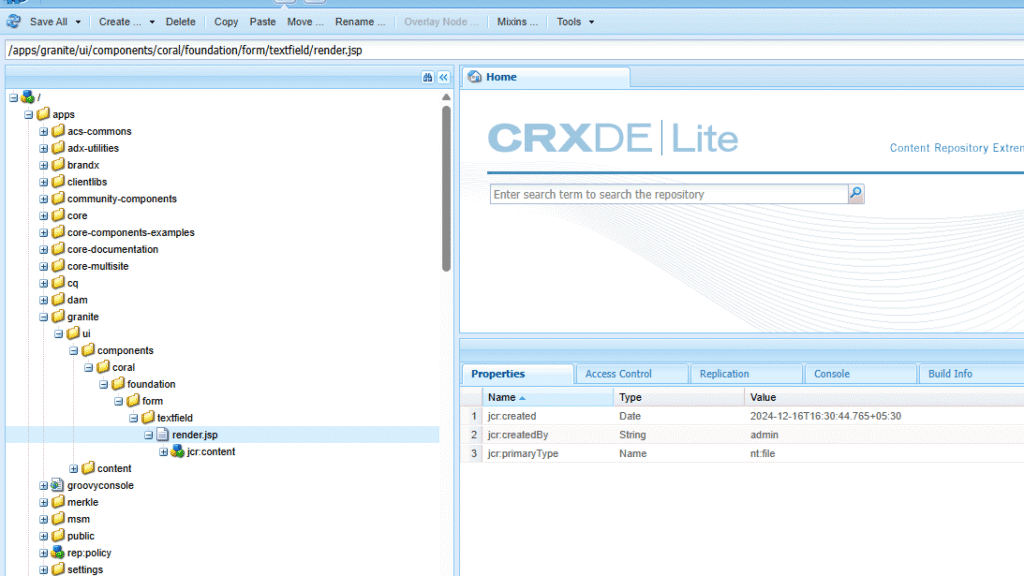
  1. Create a new folder structure under /apps that mirrors the following path: /apps/granite/ui/components/coral/foundation/form/textfield.
  2. Create a file named render.jsp within this folder. This file will contain the HTML structure for your customized textfield component.
  3. Modify the HTML (render.jsp):
  4. Copy the original HTML: Start by copying the contents of /libs/granite/ui/components/coral/foundation/form/textfield/render.jsp into your custom render.jsp file.
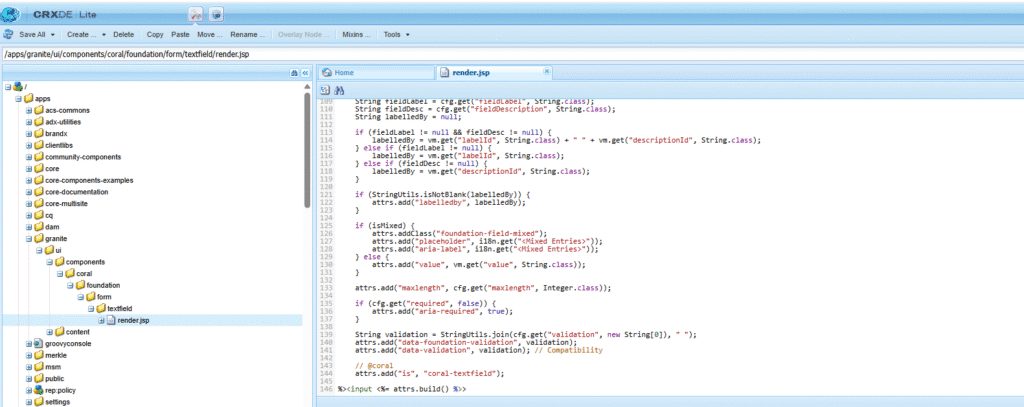
  5. Make changes in render.jsp
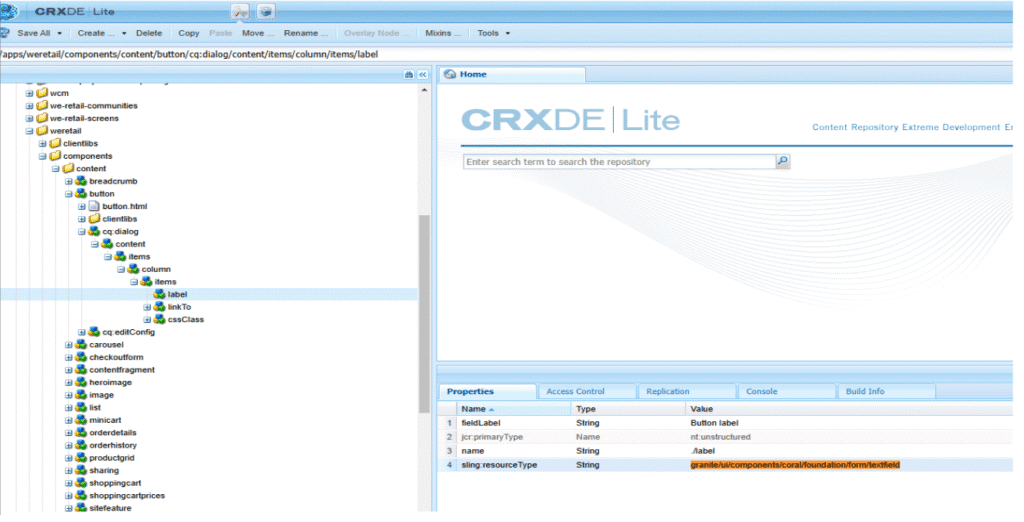
  6. granite/ui/components/coral/foundation/form/textfield text field resource is used in the button component.
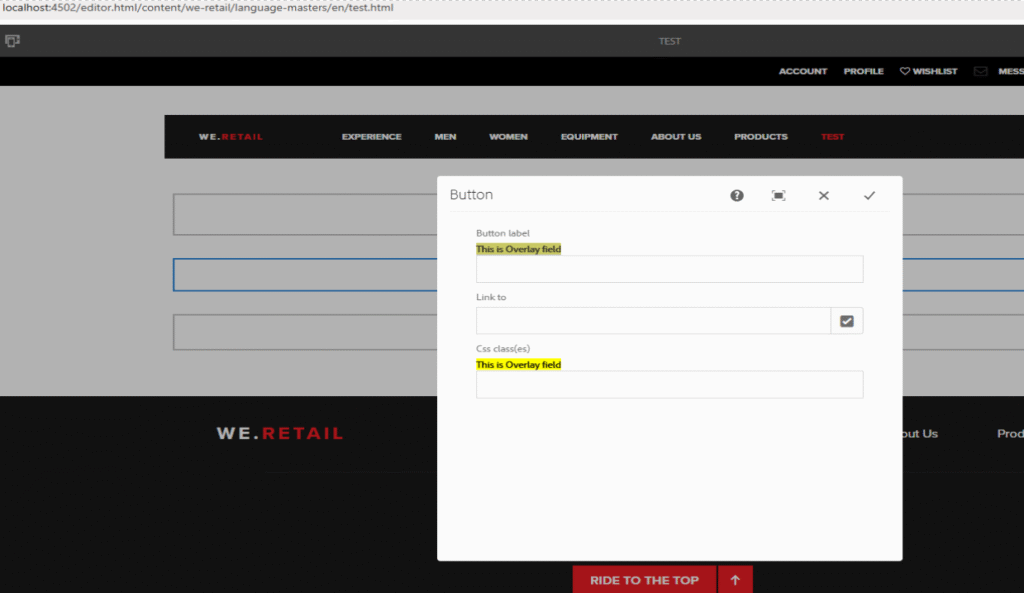
  7. Here you can see the custom implementation of the resource
  8. Resolve and Use: 
    • When AEM encounters a component that uses sling:resourceType=”granite/ui/components/coral/foundation/form/textfield”, it will first look for the implementation under /apps.
    • Since you’ve created a custom implementation, AEM will use your version of render.jsp instead of the default one from /libs.

Override: In Adobe Experience Manager (AEM), override means replacing the default version of a component or resource with your own custom version. Unlike an overlay, where you make changes to a copy of the original component, an override completely replaces the original with your version. This gives you full control, especially when you need to change a component or resource completely.

A common task for AEM developers is creating component dialogs. Sometimes, the new dialog is very similar to an existing one. Instead of recreating it from scratch, an override allows you to replace the default dialog with a custom one, giving you the flexibility to change only what’s necessary while keeping the overall structure the same.

How Override Works in AEM

When you override a component in AEM, the default component stored in /libs is replaced by your custom version, which is stored in /apps. This ensures that only your version is used.

The sling:resourceSuperType property is used to inherit functionality from the original component. For example, when overriding Basic Page, it allows you to retain the core page features while changing its behavior, such as modifying the dialog, by pointing to the original component.

Note: – You can also override components inside the “/apps” hierarchy.

Example of Override in AEM with sling:resourceSuperType:

In Adobe Experience Manager (AEM), when you override a component, you replace the default component (stored in /libs) with your custom version (stored in /apps). For example, let’s say you want to override the basicpage component from /libs/wcm/foundation/components/basicpage/v1/basicpage.

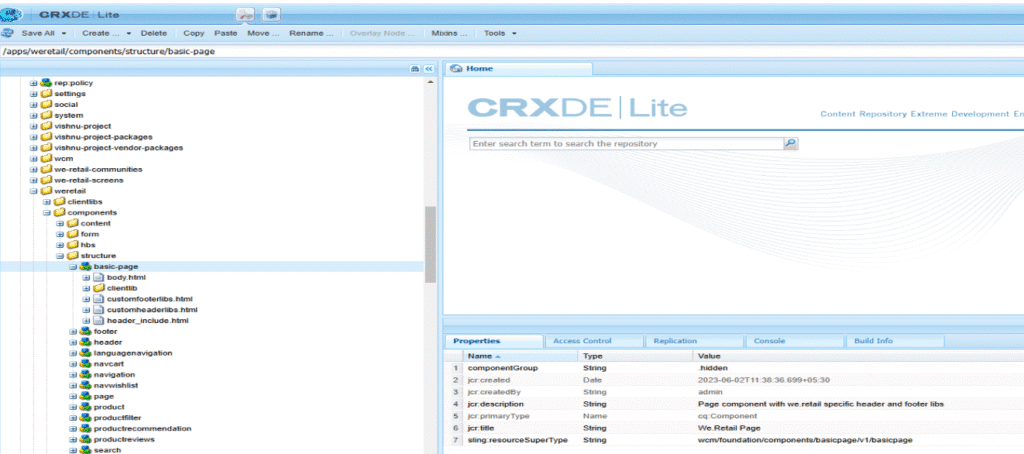
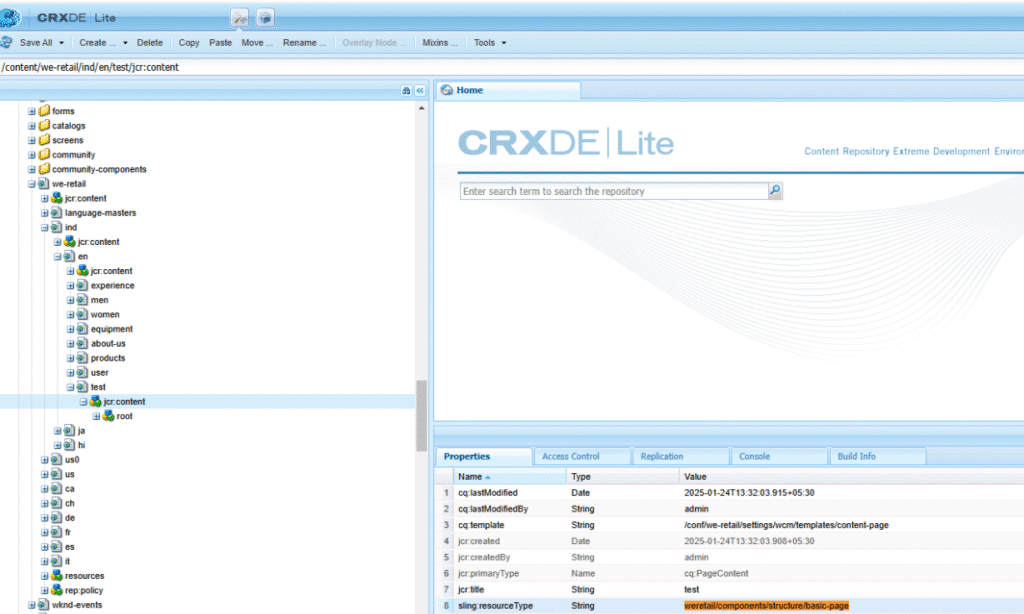
  1. Create a New Component in /apps: component is created from this hierarchy /apps/weretail/components/structure/basic-page.
  2. Use sling:resourceSuperType: Inside your custom basic-page component, you use the sling:resourceSuperType property to inherit core functionality from the default basicpage component in /libs. This ensures your custom component still keeps the original features and behavior while allowing you to add your custom logic.
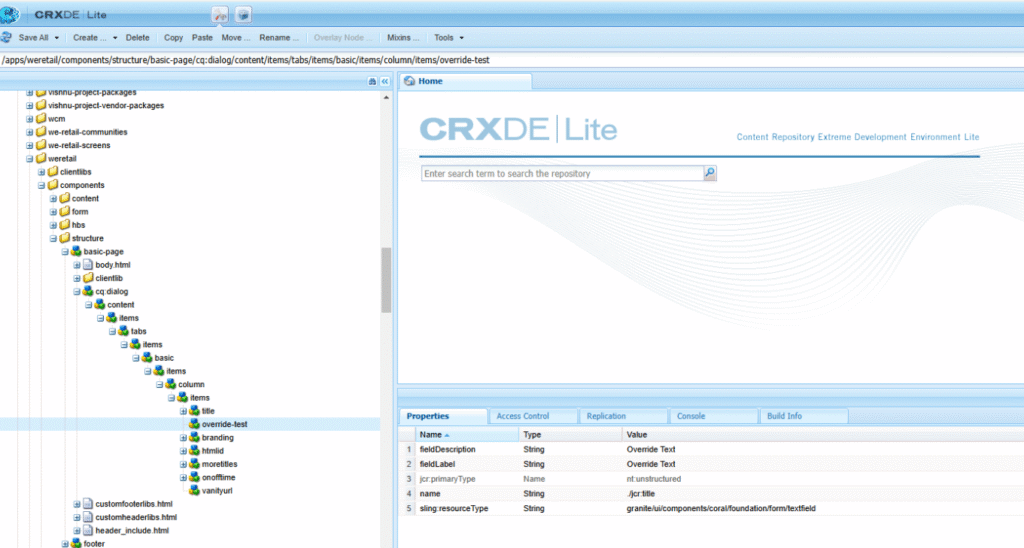
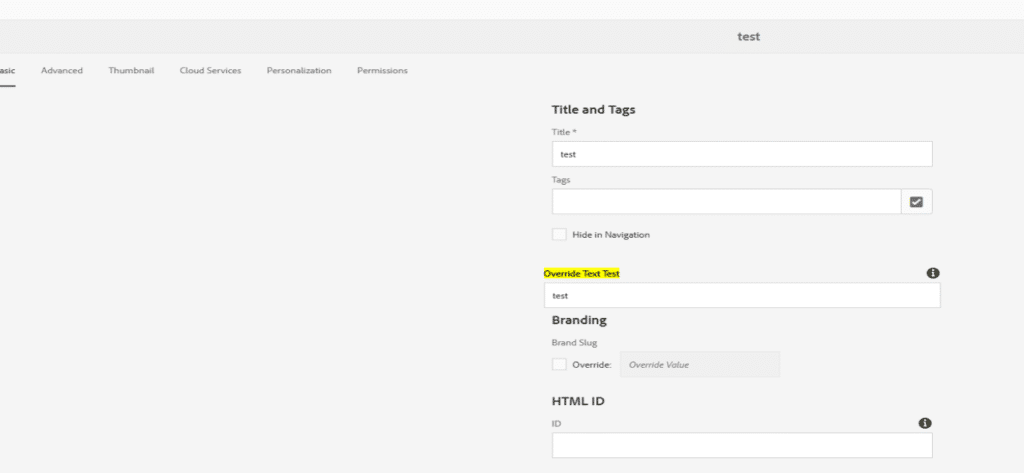
  3. Customize the Component: With this setup, you now have full control over the basicpage component. You can modify properties, change the dialog, or adjust its behavior while keeping the core functionality of the original component intact. For example, I just added a new text field to the basic-page component dialog.

After updating the basic-page dialog, our new text field is coming, and other default fields are also coming from the parent page.

    AEM Development Environment Setup – Windows

    Adobe Experience Manager (AEM) is a comprehensive content management solution for building websites, mobile apps, and forms. It enables businesses to create, manage, and optimize digital customer experiences across multiple channels. Setting up an AEM development environment on Windows requires installing necessary software, configuring system variables, and running the AEM QuickStart JAR file. This guide outlines the step-by-step process to set up AEM for development purposes.

    Step 1 – Install Required Software

    • Install Java JDK 8 or 11 on your system.
    • AEM QuickStart Jar and license details.

    Step 2 – Edit System Environment Variables

    • Open System Properties → Advanced → Environment Variables.
    • Under System Variables, create a new variable:
      • Variable Name: JAVA_HOME
      • Variable Value: Set this to the path where JDK is installed (e.g., C:\Program Files\Java\jdk-11.x.x).
    • Edit the Path variable and add the bin folder path (e.g., C:\Program Files\Java\jdk-11.x.x\bin).


    Step 3 – Create a folder structure for AEM. Copy your AEM jar file and license.properties file into your AEM folder, as shown in the screenshot below.

    • Two basic run modes can be installed: Author and Publish. The Author run mode is the environment that developers will use to create and manage content.
    • When developing most of the time you will be deploying code to an Author instance.
    • The Publish instance is the AEM environment in that visitors to your website will interact.
    • We are setting the development environment i.e.(author).


    Step 4 – Open the CMD (Command Prompt) in your folder hierarchy and unpack the JAR (Java Archive) file with command

    “java –jar <aem-jar-file-name>.jar -unpack”


    Step 5 – After Unpacking the JAR file, you will see that crx-quickstart folder is automatically created.


    Step 6 – Open the crx-quickstart folder then you will see the multiple folders.


    Step 7 – Open the bin folder then you will see the multiple files.


    Step 8 – Modify AEM Configuration

    Open the start.bat file in a text editor to change the AEM startup parameters such as port, run mode, host, etc.


    In this file you can configure the Port and Run Mode according to your requirements. For initial setup you should update the RAM/Memory by following below steps:

    1. Update memory settings from “-Xmx1024m -XX:MaxPermSize=256M” to “-Xmx4096m -XX:MaxPermSize=1024M”.
    2. To enable debugging mode, add “-Xdebug -agentlib:jdwp=transport=dt_socket,server=y,suspend=n,address=*:30307”.

    Final Step – To run AEM, double-click on the start.bat file to start the process.

    • AEM server will be up in 5 minutes(depending on your system configuration) and the aem console will open on port 4502.
    • Below screen will come up when the server is up and enters a password use admin.

    AEM Setup

    AEM Setup

    Congratulations, you have completed the initial AEM Setup.

    AEM Content Distribution – Forward Distribution

    AEM distribution agents execute the requests by creating packages from a source Sling instance containing content for the specified paths and then pushing and installing these on a target instance.

    In AEM, the distribution agent is used to push the content from the author instance to the publish instance. AEM provides the following way to replicate content:

    • Forward Distribution: “pushing” the content to target instances

    • Reverse Distribution: “pulling” content from the remote source instances

    • Sync Distribution: “synchronizing,” i.e., synchronizing content across multiple instances with a coordinating instance.

    • If you want to configure or create a forward distribution agent in the AEM touch UI, you must follow this step.

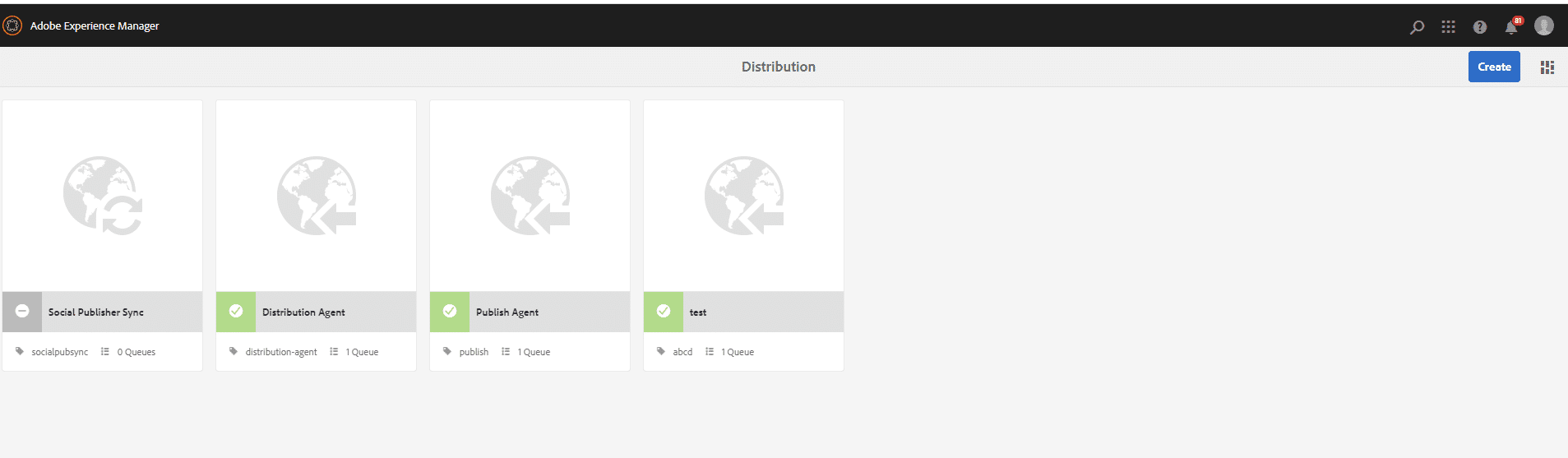
      1. Navigate to Tools > Deployment > Distribution > Publish Agent, and click on the Publish Agent to configure your settings.
        AEM Content Distribution - Aurx

      2. You can also create your custom agent by clicking on the Create button on the top right.

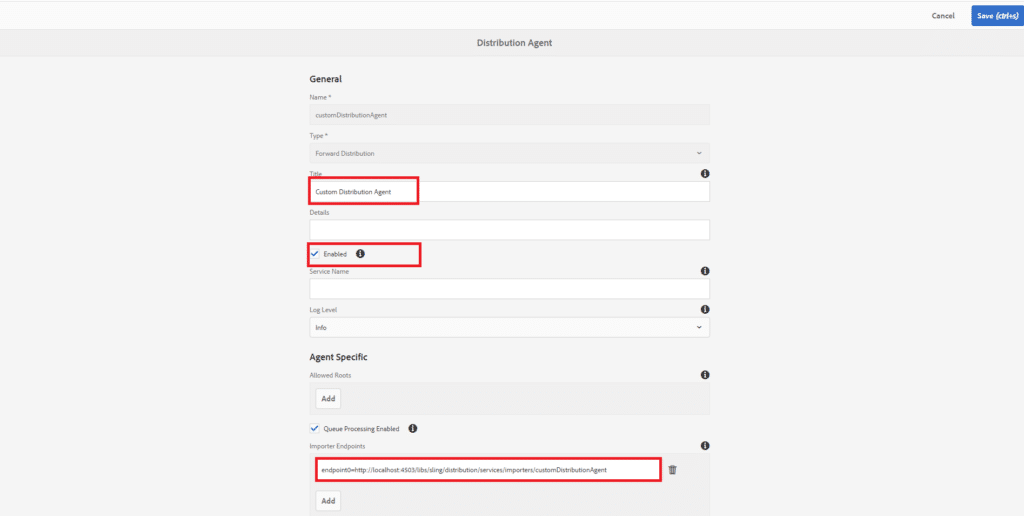
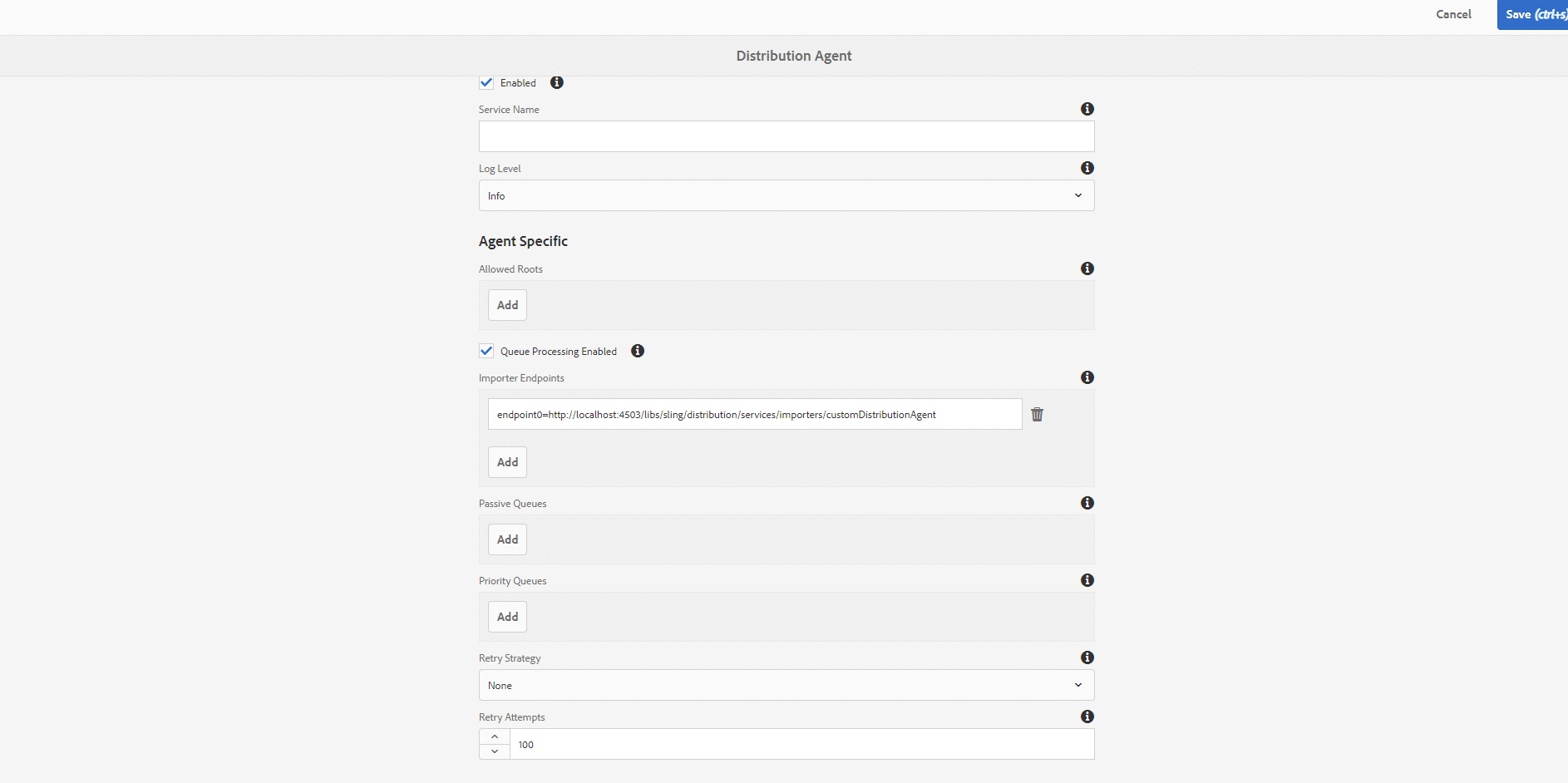
        And fill in some information about your agent.

        Note: Always keep in mind that when you provide a name to your custom agent, there should be no spaces between that name; otherwise, “JobHandlingDistributionQueue” could not add an item to the queue.

        Example:

        Non-compliant name: Distribution Agent (it will raise a NullPointerException)
        Compliant name: customDistributionAgent
        AEM Content Distribution - Aurx

        AEM Content Distribution - Aurx
        Configuration Field List:

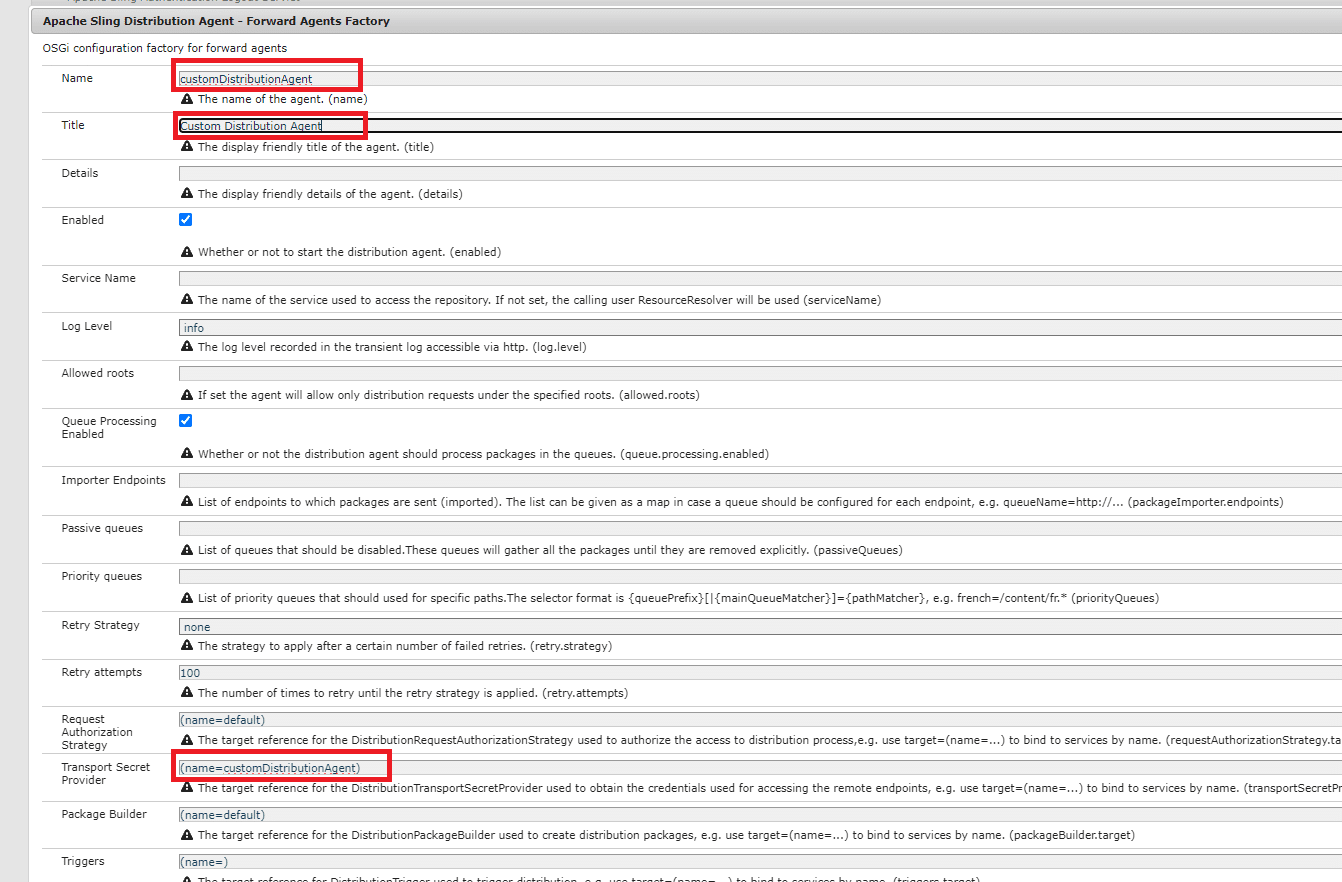
        1. Name: name of distribution Agent

        2. Type: Type of Distribution Agent (ex: Forward distribution or Reverse distribution)

        3. Title: Title of your distribution agent

        4. Enabled: Field to Enable or Disable your agent

        5. Service Name: The service name is optional, if required, create a service user with the required permission and change the level if required

        6. Allowed roots: Configure the content Roots the agent allowed to distribute

        7. Importer Endpoints: List of publisher endpoints to which packages are sent

          An endpoint is, by default:

          endpoint0=http://localhost:4503/libs/sling/distribution/services/importers/default

          But you can provide your server-specific endpoint URL, like:

          endpoint0=http://192.168.29.76:4503/libs/sling/distribution/services/importers/customDistributionAgent.

          But for your own definition of endpoint URL, you have to configure something.

      3. If you are not using the default admin credentials, then you need to configure the distribution agent with a different username and password.
        Follow the steps below:

        1. Navigate to Tools > Operations > Web Console or http://<host>:<port>/system/console/configMgr to open the Adobe Experience Manager Web Console screen.
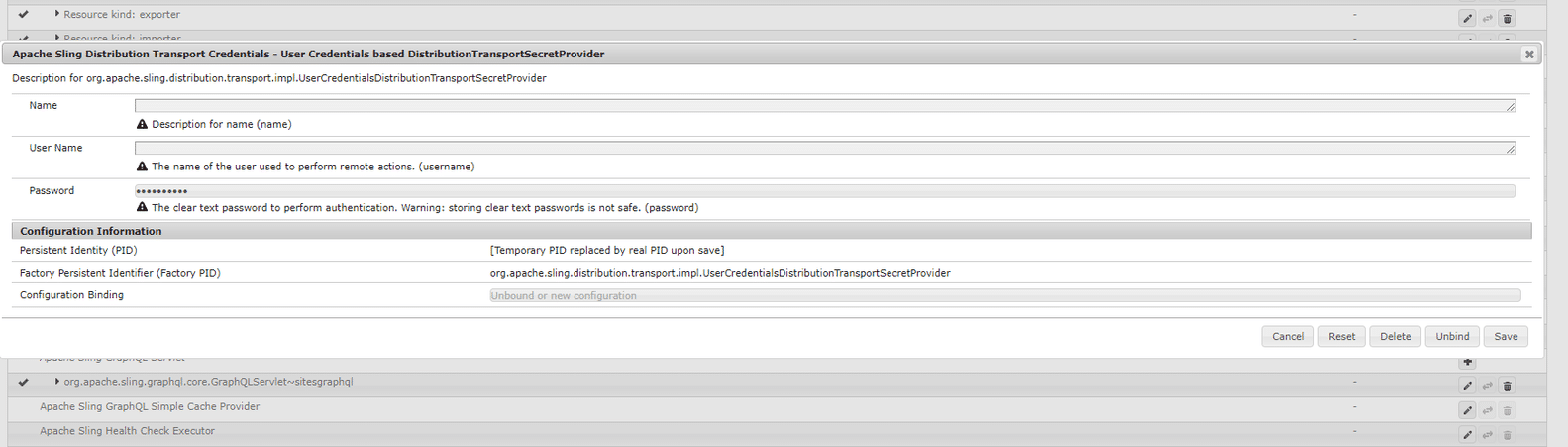
        2. Search for Apache Sling Distribution Transport Credentials – User Credentials based DistributionTransportSecretProvider.
          AEM Content Distribution - Aurx
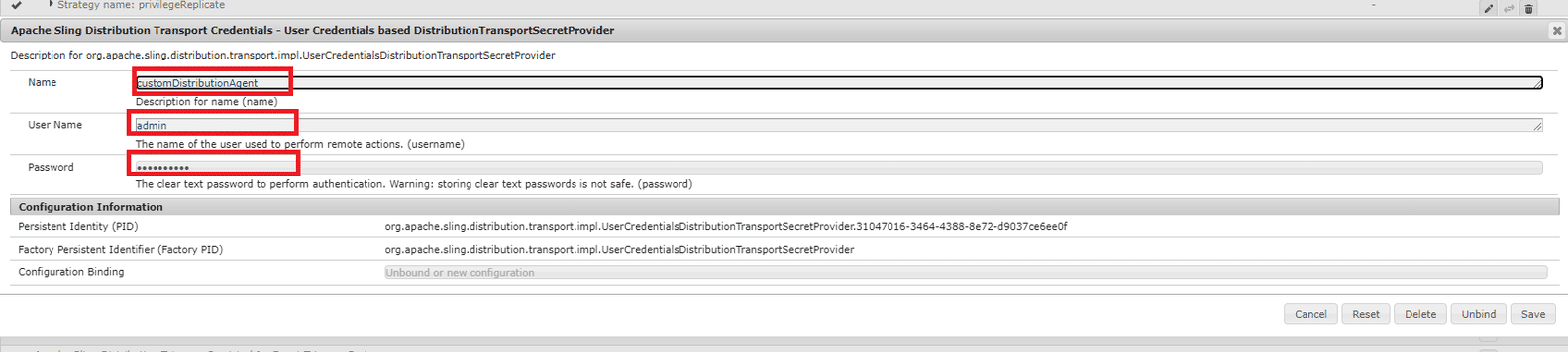
        3. Create a configuration by populating the name, username, and password.
          AEM Content Distribution - Aurx
          Configuration Field List:

          1. Name: Give a name to DistributionTransportSecretProvider
          2. User Name: Name of your publish instance user

          3. password: Password of your publish instance user

        4. Click save.
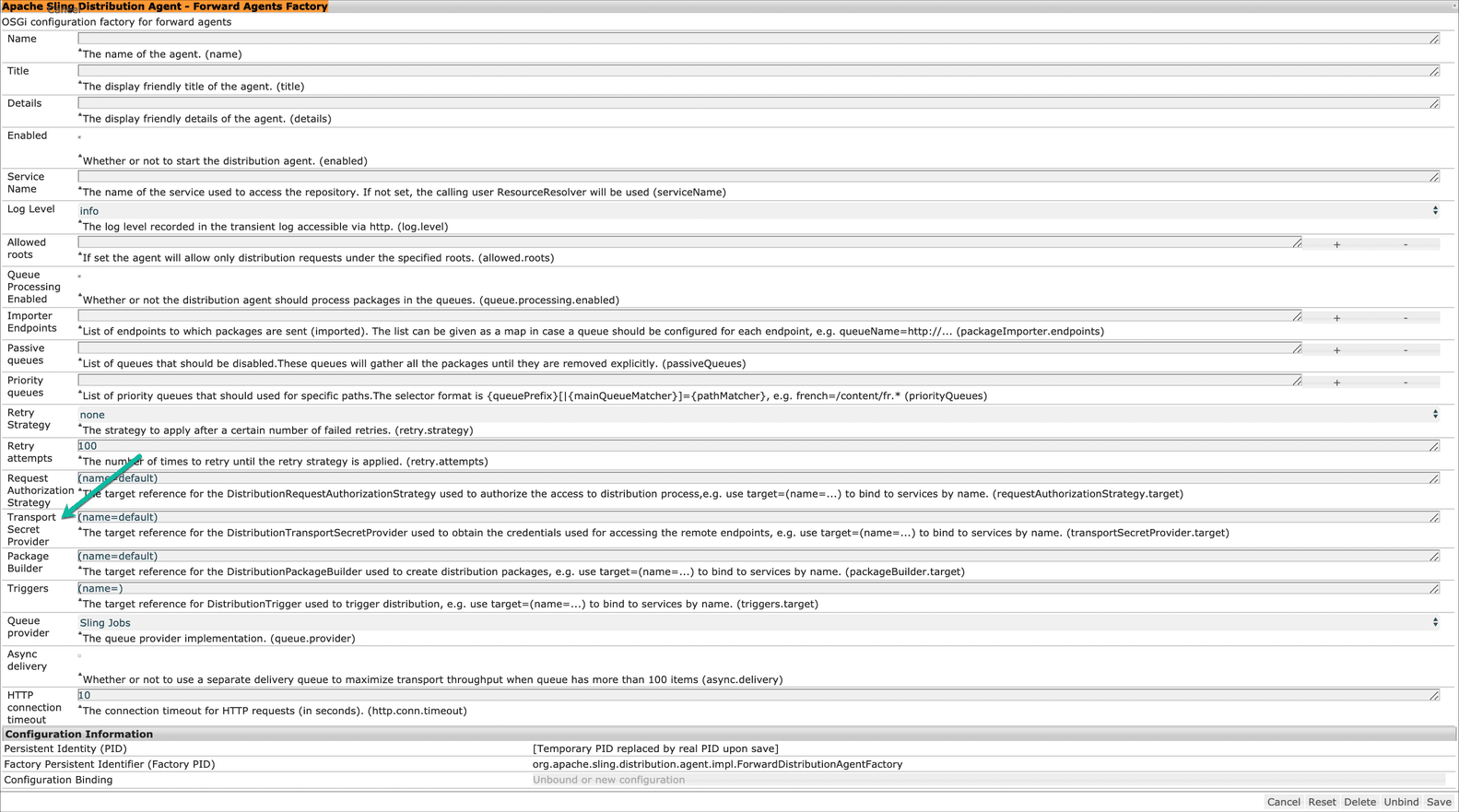
        5. Use Cmd +F to search for Apache Sling Distribution Agent – Forward Agents Factory to open the configurations and search for Transport Secret Provider.
          AEM Content Distribution - Aurx
        6. Update the (name=default) with (name=customDistributionAgent)Custom distribution data filled image
        7. Configuration Field List:
          1. Name: Give a name to the Distribution agent’s forward factory(customDistributionAgent)

          2. Title: Title of Distribution agent’s forward factory(Custom Distribution Agent)

          3. Transport Secret Provider: update this field with your custom TransportSecretProvider name(customDistributionAgent)
        8. In the publish instance, navigate to Tools > Operations > Web Console or hit this URL: http://<publish_host>:<publish_port>/system/console/configMgr.
        9. Use Cmd +F to search for Apache Sling Distribution Importer – Local Package Importer Factory, open the configurations, and enter the name as “customDistributionAgent”.
        10. Click Save and run the test connection from the Distribution Agent screen on your AEM instance.
        11. Click Test Connection from the action bar to validate the communication of the author with the publish instance, as shown in the figure below.
          AEM Content Distribution - Aurx
          Now we are ready with the forward content distribution agent, but it will not be used in the replication process if we publish any page from the sites console, because AEM uses the default replication agent to complete that publication. Below, we will understand this in a more efficient manner.
          AEM Content Distribution - Aurx
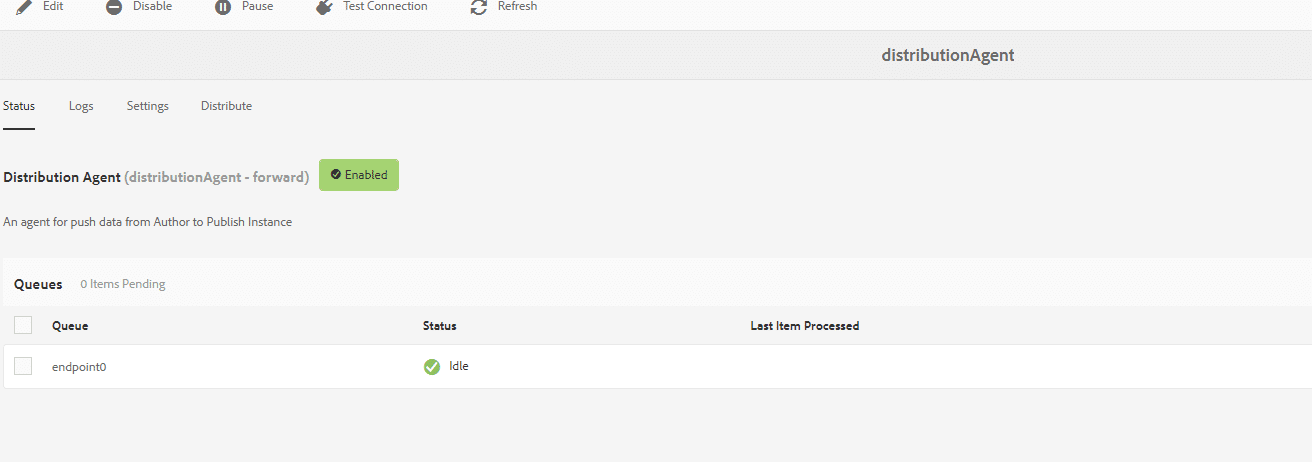
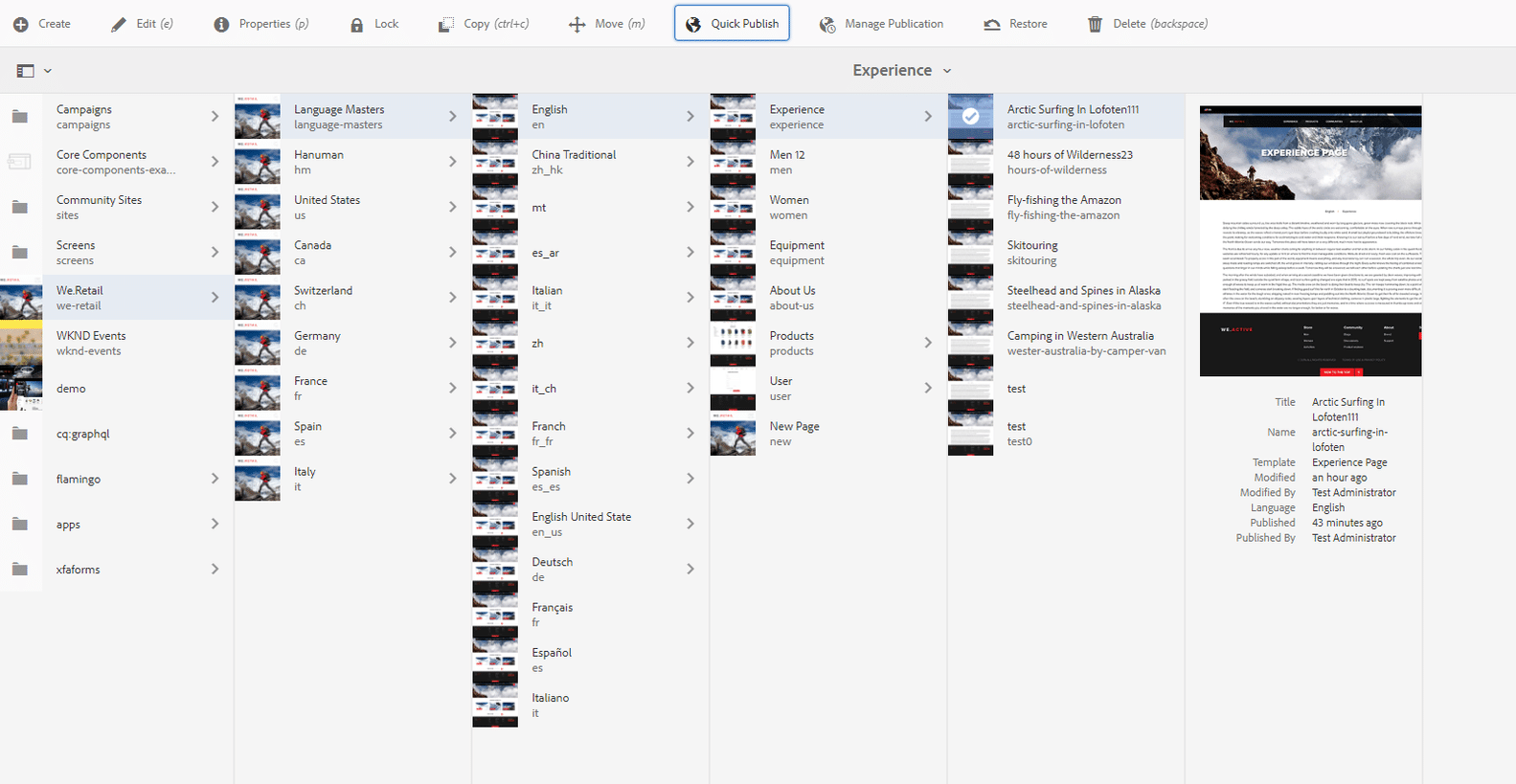
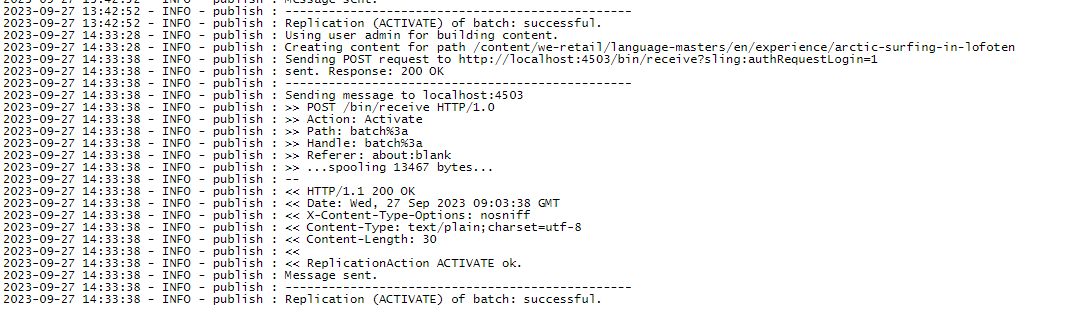
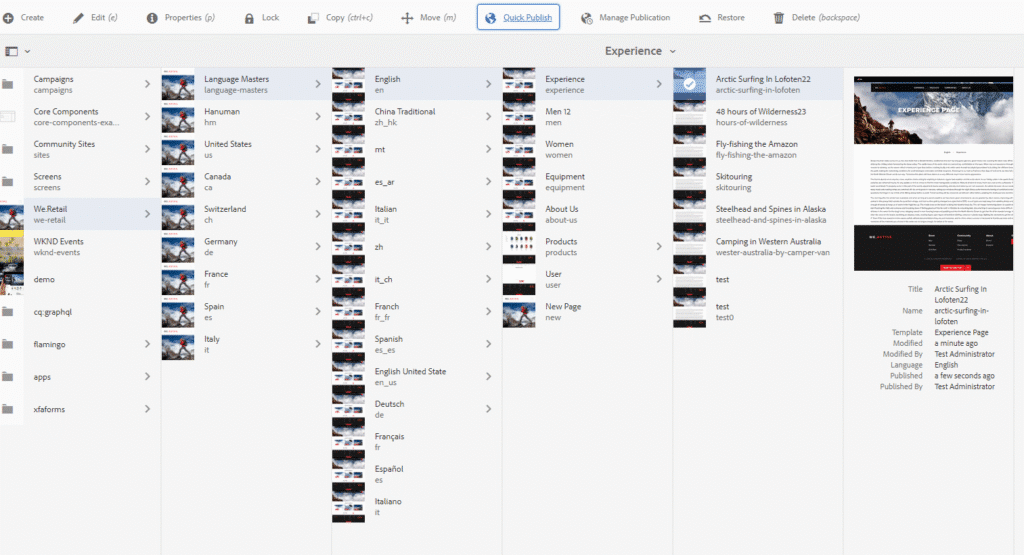
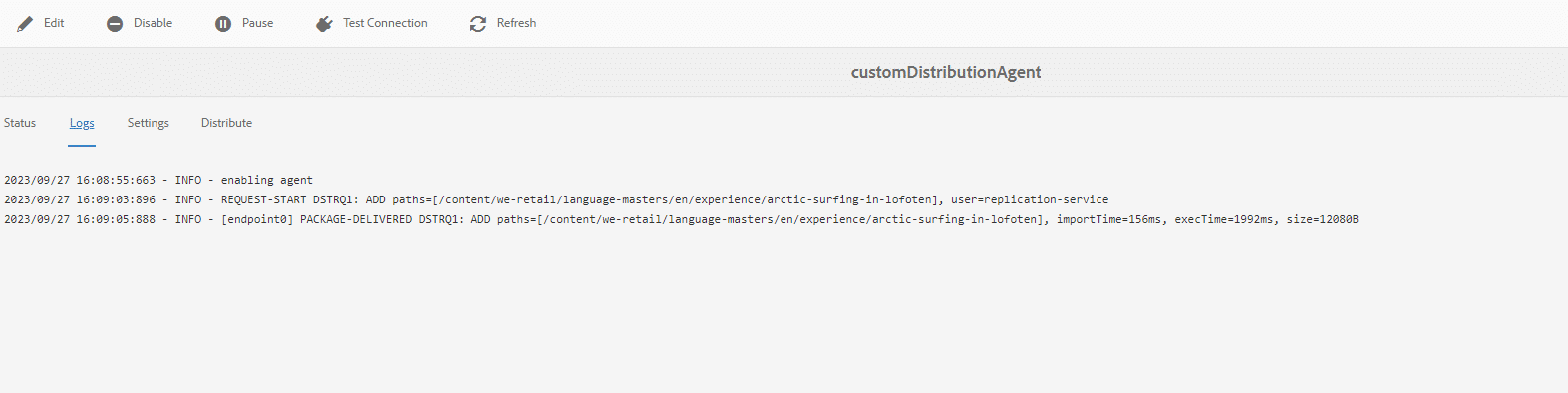
          If we want to publish any page, then we click on that page and click on Quick Publish, so our page will be published. But now the default replication agent is working, not our custom distributed agent. We can check this in the logs of both agents. I published a /content/we-retail/language-masters/en/experience/arctic-surfing-in-lofoten page.
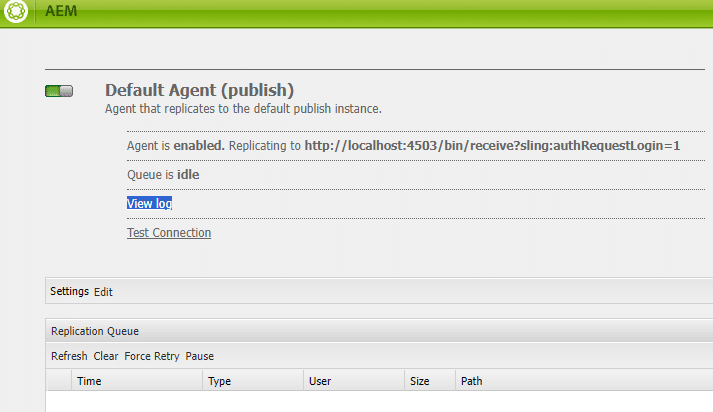
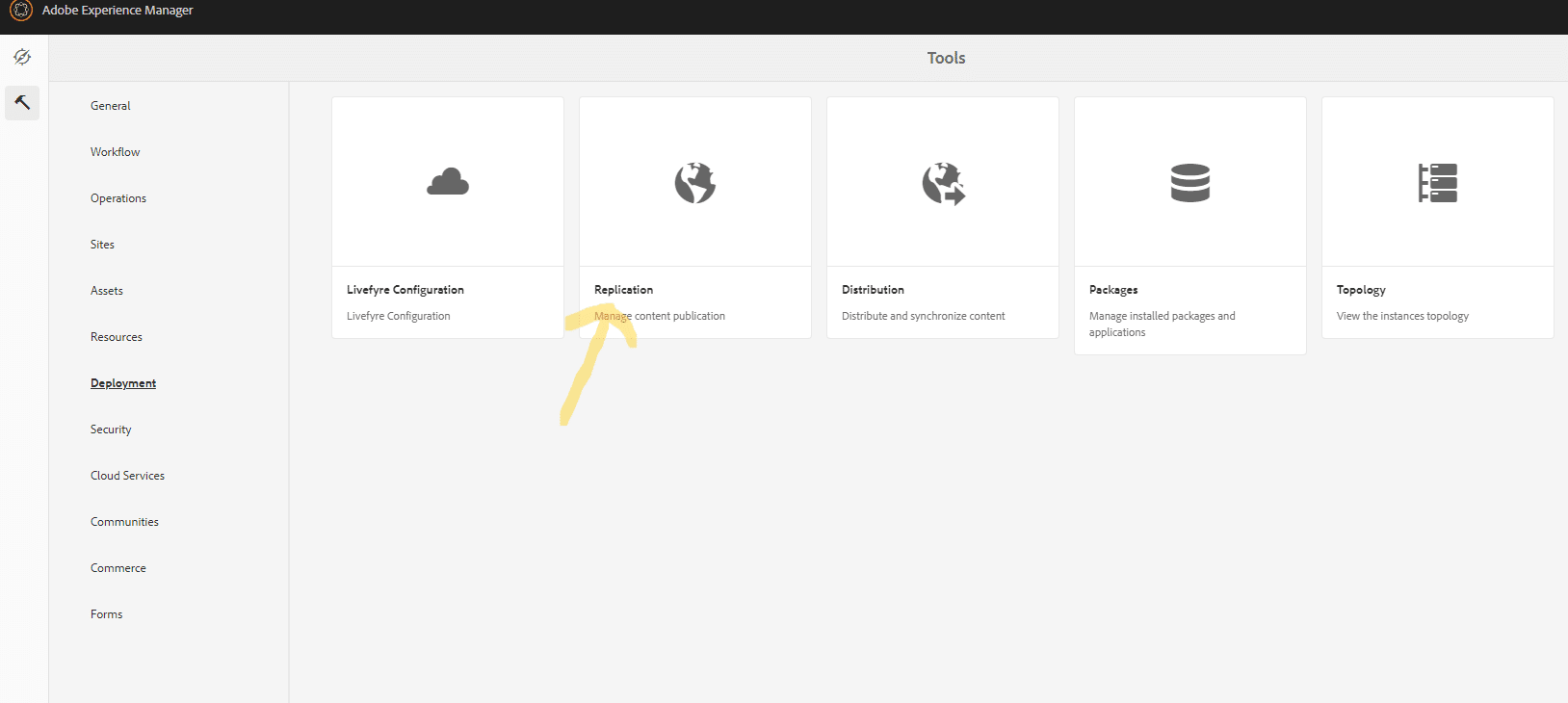
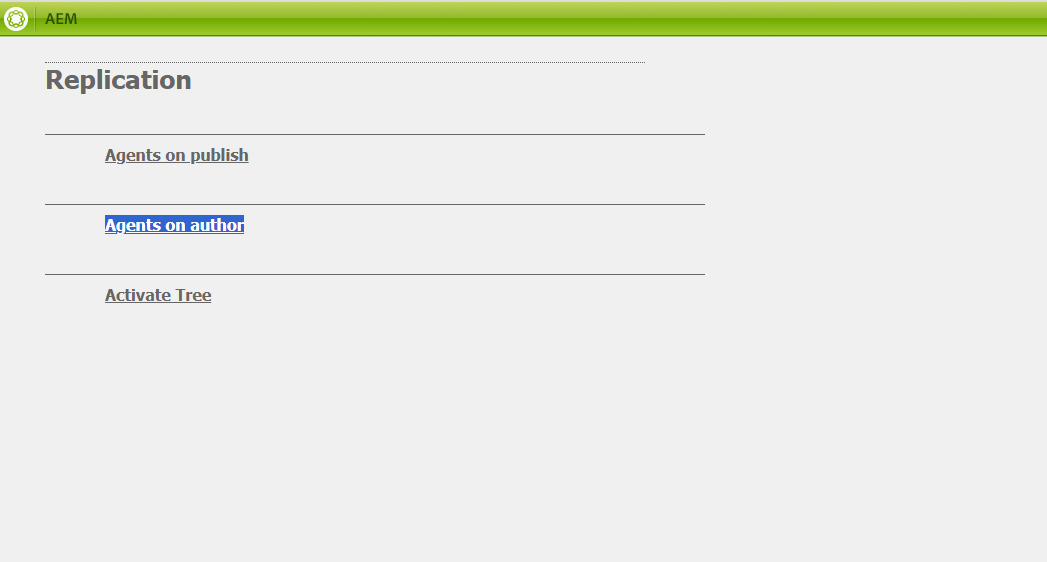
          Note: If you want to check the logs of the default replication agent, then you should navigate to Tools > Deployment > Replication > Agent Author and click on the default agent (author). Click on View Log.
          AEM Content Distribution - AurxAEM Content Distribution - AurxAEM Content Distribution - Aurx
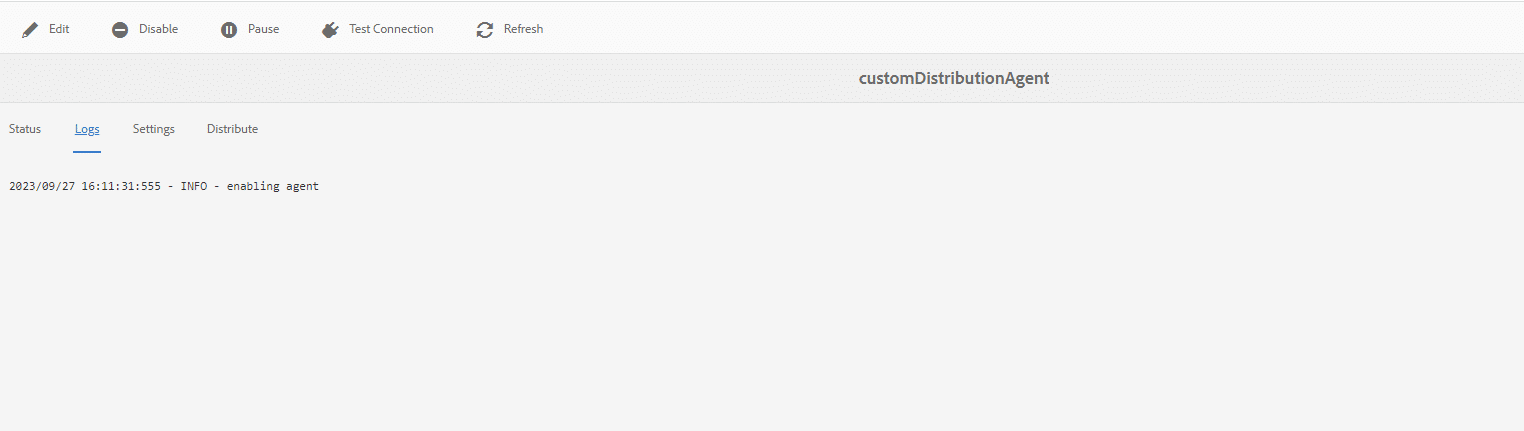
          When we compare both images, there are no logs printed in our customDistributionAgent. While in AEM default replication agent did the publication.
          In AEM out-of-the-box functionality, by default, when we publish any content, the automatic replication agent invokes and completes the process of publication. If we want to use our distribution agent, then we should do some configuration in the AEM replication default agent.

          To activate our distribution agent as the default distribution agent, we have to do more configuration. Until now, our distribution agent is ready.

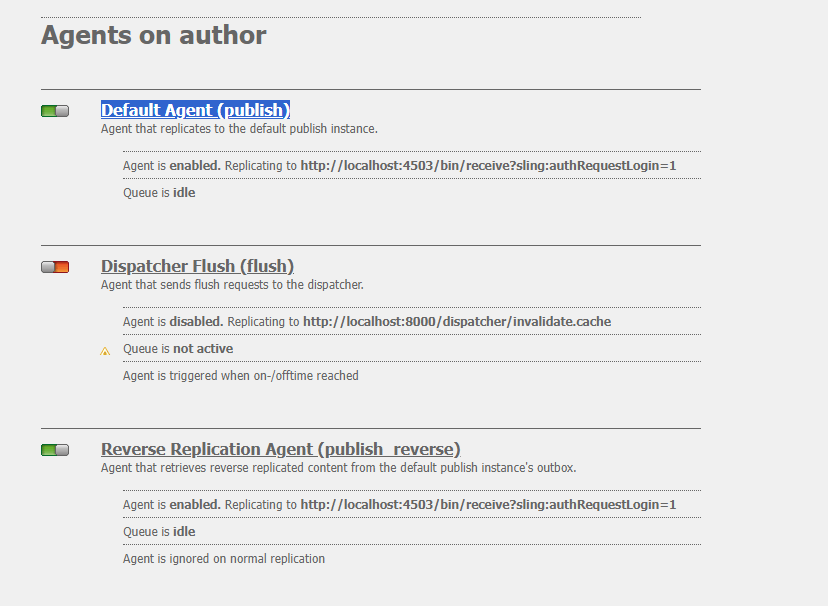
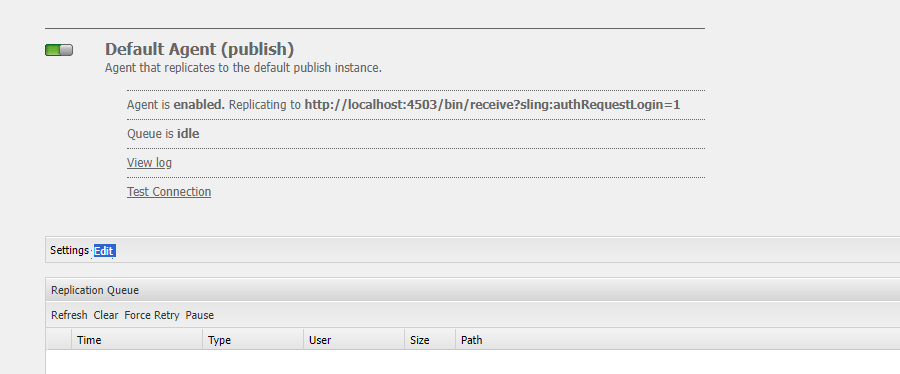
          Navigate to Tools > Deployment > Replication > Agents on Author and click on the Default Agent (Publish) to configure the setting.

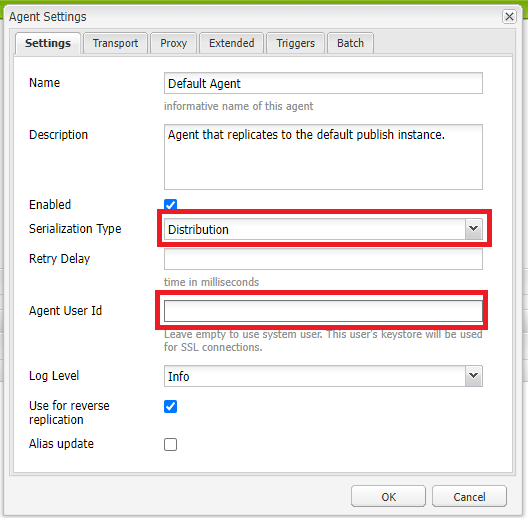
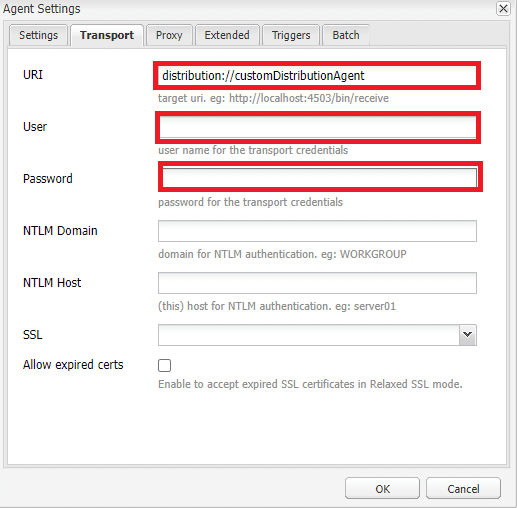
        12. Now click on the edit button and make the required configuration changes, as shown in the figure below:

      4. user, password field will be blank.
      5. Configuration Field List:
        1. In the settings tab:
          1. Name: Name of your replication agent

          2. Description: Description of agent

          3. Enabled: To Enable or disable your Agent

          4. Serialization Type: Select ‘Distribution’ from dropdown.
        2. In Transport tab:
          1. URI: Publisher endpoints to which packages are sent (But in this configuration, we are providing our distribution agent URL) i.e.(distribution://customDistributionAgent)

          2. User: should be kept blank
          3. Password: should be kept blank

      6. Click OK to save the changes.
        Note: As you can see in the figure, in the transport tab, you get the default URL, which you have to replace with your distribution agent name (distribution://<customDistributionAgentName>). The user, password fields must be left blank in order to make the replication agent to work. In the settings tab, the agent user ID field will also be blank.)
      7. To check whether our configuration is working or not, quickly publish a page, and we will check our custom distribution agent logs.

      8. Now our page is published with our custom distribution agent.